
Do not interrupt an operation in progress
Keep the ignition on and the ENET cable connected. Do not close Feature Installer or operate the iDrive system until the application reports Success.
Download, extract, and open the EXE
Use the private link in your customer email to download the ZIP file to your Windows PC. Select Extract All, then open the extracted folder.
1. Open your email
Use the private ZIP link
2. Extract the ZIP
It contains the EXE and feature code
3. Open the EXE
Run it directly from the extracted folder
No installer is required. Open the Feature Installer EXE directly. The feature code is included inside the ZIP and is also provided in the customer email.
- Laptop has a stable connection
- Feature code is ready
- ENET cable is firmly seated
- Vehicle ignition is switched on
Connect and find the vehicle
Connect the ENET cable between the laptop and the vehicle's OBD port, switch the ignition on, then open Feature Installer. Your VIN should appear in the selector at the upper left.
VIN not shown? Confirm the ignition is on and reseat both ends of the ENET cable. Then select Find Vehicle.
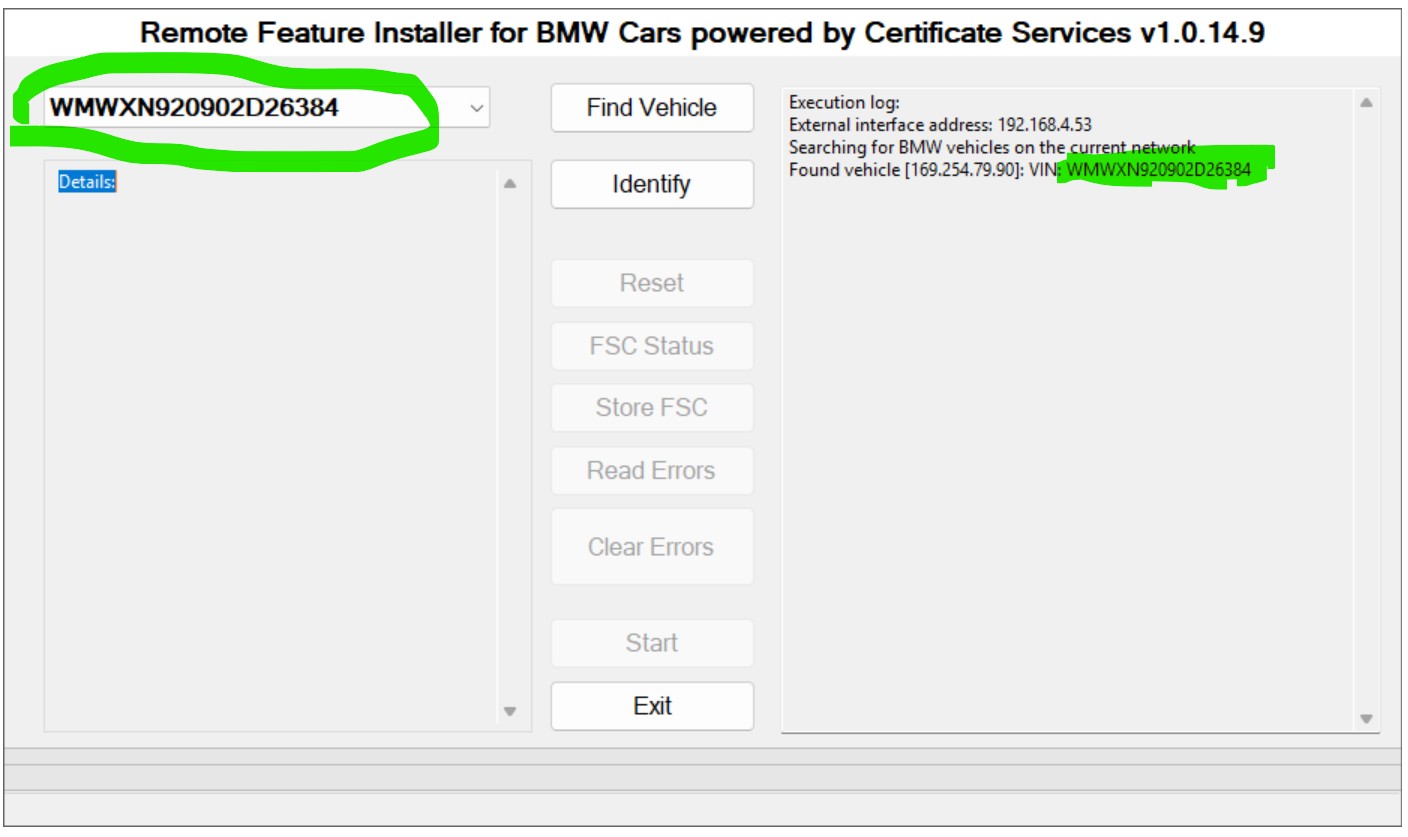
Identify your BMW
After the correct VIN appears, select Identify. Wait while Feature Installer reads the vehicle and opens the activation-code prompt.
Verify the VIN belongs to the vehicle you are working on before continuing.
Enter the feature code
Type the feature code exactly as shown in the ZIP or customer email, including the hyphen, and select Continue. Once the code is accepted, the available actions will become active.
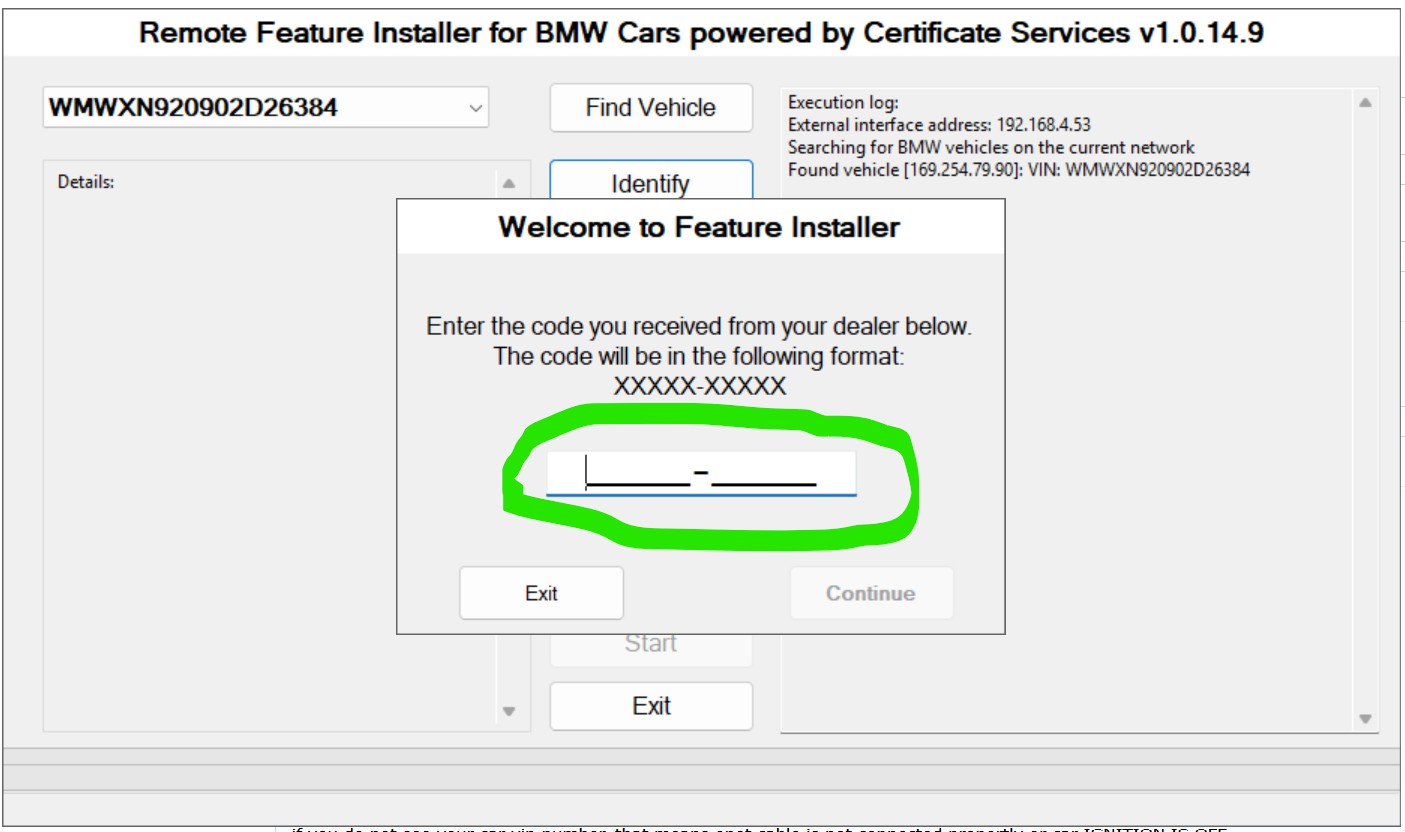
Start the operation
Review the available actions, move to the bottom of the Feature Installer controls, and select Start. Feature Installer will begin applying the selected operation to your vehicle.
The display may temporarily change
Depending on the feature, iDrive may show a temporary blue or restart screen. Do not interact with it.
Vehicle systems may restart
One or more affected systems may restart while the operation is applied.
Wait for Success, then disconnect
Leave everything connected until Success appears in Feature Installer. This confirms the selected operation has completed.
- 1Confirm Feature Installer reports Success.
- 2Exit Feature Installer.
- 3Unplug the ENET cable from the vehicle's OBD port.
If Success does not appear, do not disconnect or retry blindly. Leave the setup in place and contact your support provider for the next step.